
Disable Auto and pin one nearby region
Separate upstream vs downstream packet loss
Rule out Source 2 particle drops in fights
Start here
What to check first when Dota 2 inputs lag or freeze
Enable Display Network Information in Advanced Options, uncheck extra distant server regions in the Play Dota menu, and test one unranked or bot-lobby match while watching the top-right corner. If Ping stays steady and In/Out Loss reads 0% while spells stutter during teamfights, investigate client FPS and shader settings first. If Out Loss jumps while Ping spikes, pause home uploads and compare one Ethernet match on the exact same server region.
Turn on Dota 2's built-in FPS, Ping & Packet Loss HUD
- Settings (Gear Icon)
- Options
- To Advanced Options
- Display Network Information: On
- -ping in chat for spot check
Ping stays within a narrow band across laning and teamfights while both loss counters remain at 0%.
Flat elevated ping with 0% loss points to region selection or SDR relay distance; FPS drops with flat ping point to client rendering.
Rising Out Loss signals home Wi-Fi or upload queue saturation; repeated In Loss on quiet Ethernet points to the SDR or ISP path.
Tip: Open the Steam Overlay (Shift+Tab) during a match or type status in the developer console to note the exact Valve SDR cluster assigned to that lobby.
Dota 2 symptom separation
Four distinct issues hide behind "Dota 2 lag"
Dota 2 runs a 30-tick simulation loop with deliberate hero turn rates. Separate real network loss from turn-rate feel, distant server placement, and client frame drops.
Delayed last-hits with flat high ping & 0% loss
Click-to-attack feels sluggish by a consistent margin every match. Usually caused by queuing on a distant region (e.g., SEA from AU or EU East from US) or an indirect SDR peering path.
Periodic freezes with Out Loss jumping above 0%
Your movement and cast orders fail to reach the server cleanly. Strongest leads are Wi-Fi interference, Windows/Steam background uploads, or home router queue saturation.
Slideshow teamfights while ping & loss stay calm
Illusion heroes (Phantom Lancer, Naga Siren) and stacked spell particles spike CPU/GPU frame time. Network hardware and VPNs cannot repair client rendering stalls.
Whole lobby freezes or "Auto-disconnect in 25s"
When teammates and opponents pause or drop simultaneously, the Valve game coordinator or specific regional match cluster is experiencing server-side trouble.
Dota 2 fault tree
Follow the branch that matches your HUD readout
Start with the lowest-risk check that matches what moved in your top-right overlay.
Ping rose suddenly after queuing with friends
Party queues respect the party leader's selected server checkboxes. Before touching local settings, check which region cluster the match actually landed on and verify your solo baseline.
In Loss climbs during prime-time evenings on Ethernet
Quiet the household uplink first, then compare two matches on Ethernet against a secondary nearby region checkbox. Record exact local timestamps and SDR relay codes if loss repeats on a quiet wired line.
Ping looks normal, yet heroes stutter during lane pushes
Check whether FPS drops below your monitor refresh rate or if Steam is downloading workshop/arcade updates in the background. Disable Steam downloads during gameplay before editing network settings.
Source 2 & Valve SDR context
Why Dota 2's Steam Datagram Relay changes how you test routes
Like Counter-Strike 2, Dota 2 protects match servers behind Valve's Steam Datagram Relay (SDR). Your client establishes an encrypted UDP path to a nearby Valve relay point of presence, which forwards packets over Valve's backbone to the actual match host. Because of that relay layer, pinging a generic website or running an ordinary speed test cannot confirm how your ISP peers with Valve's regional PoPs.
Inside the Play Dota region dialog, Valve pings its regional clusters before you queue and displays estimated latency next to each region (such as US East, EU West, SE Asia, or Australia). Turning off Auto and pinning a single region is essential whenever you compare before-and-after changes: otherwise, an evening match on one cluster and a morning match on another cluster cannot be compared fairly.
Dota 2 also offers a Network Quality toggle (High / Low) under Advanced Options. Treat it as a single controlled variable for severely constrained links rather than a cure-all—reducing update density cannot eliminate Wi-Fi retries or fix an overloaded regional server.
Dota 2 match worksheet
Keep selected region, SDR cluster, and loss split attached
Record three matching sessions before keeping a change. Blank rows are yours to fill—we do not invent sample match results.
| Session | Selected Region | Party / Solo | Connection | Ping / In-Out Loss | Teamfight FPS |
|---|---|---|---|---|---|
| Example format (not a match) | SE Asia (pinned) | Solo Ranked | Ethernet · quiet | 42 ms · 0% / 0% | Steady 120 FPS |
| Baseline Match 1 | |||||
| Baseline Match 2 | |||||
| After Single Change |
Dota 2 diagnostic order
Pin the region, enable telemetry, quiet the home link, then compare routes
Change one setting per test block so you know what actually fixed the match.
Pin one server region
Turn off Auto region selection and check only your nearest cluster before running comparison matches.
Enable Display Network Information
Keep FPS, Ping, and In/Out Loss visible in the top-right corner throughout both laning and late-game fights.
Pause Steam & home uploads
Disable Steam background downloads during play and pause cloud backups, streams, or large calls on the LAN.
Compare Ethernet vs Wi-Fi
Play one match over Ethernet on the exact same server region to isolate wireless airtime retries.
Test an alternate route last
Only if wired quiet runs still show evening SDR loss or high ping, compare three matched runs before keeping any routing tool.
In-game instrumentation
What each number in Display Network Information tells you
Read all three metrics simultaneously when a stutter hits so you target the right layer immediately.
FPS (Top-Right)
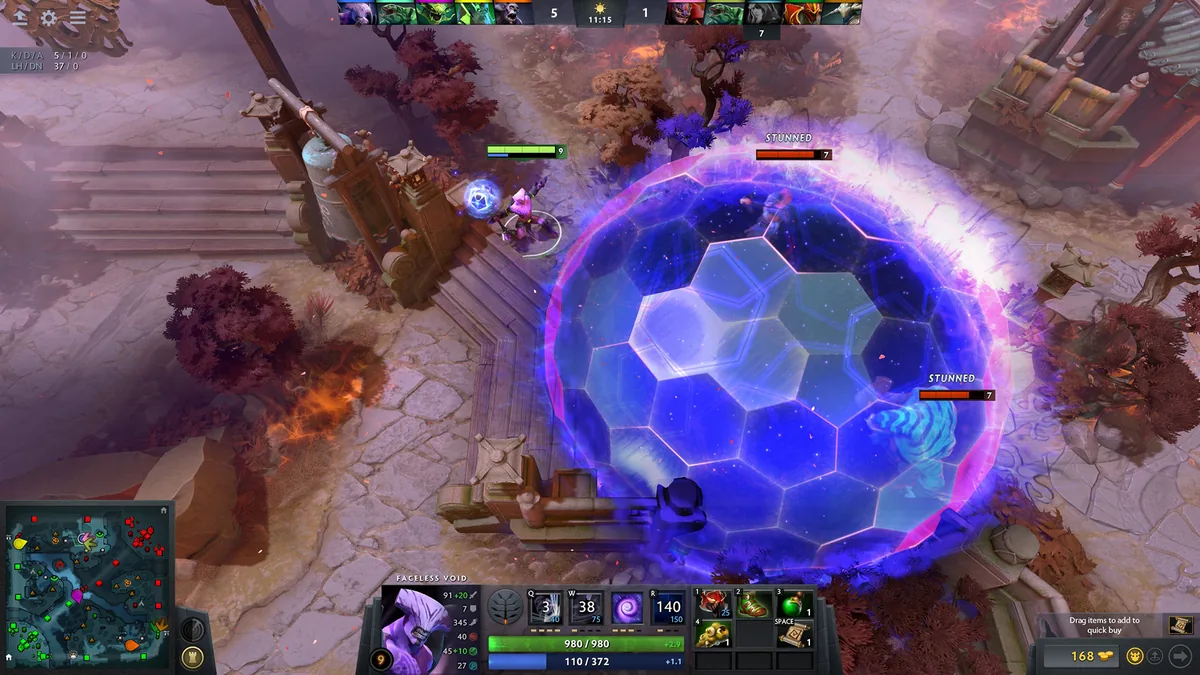
Shows client frames per second. A sharp drop during Chrono, Black Hole, or illusion fights while Ping and Loss remain flat is a CPU/GPU or shader stall.
Ping (ms)
Round-trip time to the assigned Valve SDR cluster. Steady high ms indicates region distance or peering; erratic ms jumps indicate local Wi-Fi or queue contention.
In / Out Loss (%)
Separates server-to-client loss (In) from client-to-server loss (Out). Sustained Out Loss strongly points to home upload saturation or wireless drops.
Dota 2 match scenarios
Match common Dota 2 issues to the right control check
Keep patch version, server cluster, and hero-fight intensity noted when comparing runs.
Custom Arcade games lag while standard matches feel fine
Custom Arcade lobbies can be hosted on different Valve regional pools or run heavy custom Lua scripts. Always benchmark your connection in standard Valve matchmaking, not custom lobbies.
SEA or Australia evening ping jumps across multiple ISPs
Subsea cable maintenance or evening transit peering shifts can elevate Valve SDR ping across an entire city. Check whether friends on different local ISPs see the exact same shift before reconfiguring your PC.
Reconnecting works, then packet loss returns 5 minutes later
Periodic loss cycles often track scheduled cloud backups, mesh Wi-Fi band steering, or thermal throttling on a home router. Run a quiet wired match alongside a 30-probe Windows ping log to compare gateway vs public stability.
Dota 2 telemetry decision table
| Telemetry observation | Next controlled check | What it cannot prove |
|---|---|---|
| Out Loss rises above 0%; ping bounces | Pause household uploads and Steam downloads, then repeat one match over wired Ethernet on the same pinned region. | Cannot prove Valve's server is degraded while Wi-Fi or home upload traffic is active. |
| Flat high ping, 0% In/Out loss | Check Play Dota region checkboxes (disable Auto) and verify party leader region before testing routes. | A local router upgrade or DNS change cannot shorten physical distance to a far Valve cluster. |
| FPS plunges in teamfights; ping & loss flat | Leave network settings untouched; test DirectX/Vulkan renderer, video effects, and background apps separately. | Ethernet cables, QoS, or routing tools cannot raise Source 2 rendering FPS. |
| In Loss repeats on quiet wired Ethernet | Log timestamps, pinned region, and compare a 30-probe gateway vs public ping log alongside one alternate region check. | A single bad evening match cannot separate temporary regional server load from persistent ISP peering loss. |
Scope boundaries
What a Dota 2 routing tool cannot fix
Route adjustments only apply when repeatable peering congestion sits between your ISP and Valve's SDR relay.
- ×Source 2 teamfight FPS drops from heavy spell particles or thermal throttling
- ×Wi-Fi retries, mesh hops, or household upload bufferbloat
- ×Auto region selection or a party leader queuing a distant server cluster
- ×Valve Game Coordinator outages or regional cluster maintenance
Related tools & guides
Continue isolating your Dota 2 connection
Pair this checklist with our private browser diagnosis tool or cross-game field notes.
Answer five quick questions privately in your browser for one prioritized safe first check.
Open diagnosis → Compare with CS2 (Valve SDR)Both titles share Valve's Steam Datagram Relay architecture and Source 2 telemetry model.
Open CS2 guide → Packet loss vs high pingLearn why 2% packet loss ruins teamfight inputs more than a steady 60 ms ping.
Read field note → Home hardware checksOnly inspect Ethernet cables, MoCA, or SQM routers after local checks point inside your home.
View hardware checks →Official Valve & Steam references
Verify current options in Valve's official channels
Menu labels and regional clusters evolve across Dota 2 patches. Always check official Steam support during suspected server outages.
Dota 2 FAQ
Frequently asked Dota 2 lag & packet loss questions
Why does Dota 2 show packet loss only during big teamfights?
Large 5v5 engagements with illusions, wards, and simultaneous spell effects increase snapshot packet size and client rendering load at the exact same moment. Watch both the In/Out Loss percentage and the FPS readout in Display Network Information before blaming your ISP.
Does Dota 2's Auto Region selector always pick my lowest-ping server?
Not always. Auto selection can include up to three regions and may shift you onto a secondary cluster during off-peak queue times or when queuing with a party. Manually selecting one known nearby region keeps your baseline comparable.
Why can a Valve Steam Datagram Relay show higher ping on one ISP than another?
Dota 2 sends match traffic through Valve's Steam Datagram Relay (SDR) points of presence. If your ISP's peering path to the closest Valve PoP is congested in the evening, SDR may route through an alternate relay with higher steady ping.
Should I switch Dota 2 Network Quality to Low?
Only as a controlled single-variable check on constrained or unstable links. Setting Network Quality to Low reduces update density, which can slightly soften bandwidth pressure on saturated connections, but it cannot repair Wi-Fi drops or a distant server region.